










Never Run Out Of Buyers To Sell To.
500M+
Contacts
60M+
Mobile Numbers
50M+
Companies

How ReachStream Export Credits Work - The 1, 1, and 10 Rule

How ReachStream Export Credits Work

How ReachStream Export Credits Work - The 1, 1, and 10 Rule

Summarize this article with AI:

Not All Exports Cost the Same, and That Trips People Up

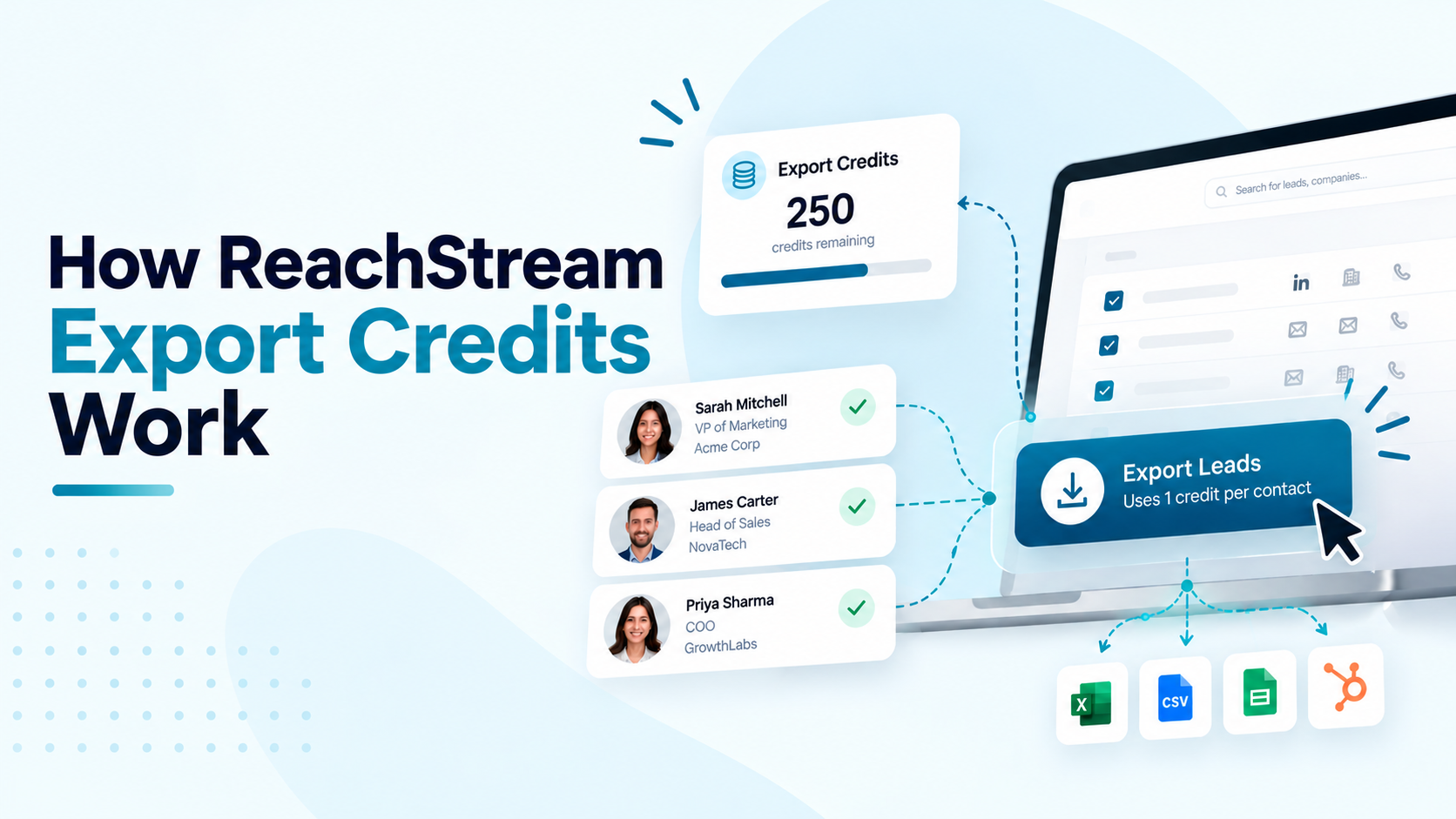
Every ReachStream export credits transaction follows one of three simple rules: 1 credit for a contact with a verified email, 10 credits for a phone number, and 1 credit for a company record. Searching and viewing profiles never touches your ReachStream export credits balance, only the moment you actually download or sync data does.

Here’s exactly how ReachStream export credits are counted, what each plan costs, and how to make every credit count.

ReachStream Export Credits: The 1, 1, and 10 Rule

Three simple numbers cover every way you’ll spend ReachStream export credits. Here’s what each one means in practice.

Diagram showing the ReachStream export flow from search to export, with credit costs: 1 for email, 10 for phone, 1 for company
1

1 Credit: A Contact With a Verified Email

The most common way to use ReachStream export credits is exporting a contact that has a verified email address. Every valid, verified email you download or sync costs exactly 1 credit, regardless of which plan you are on.

Example: Export 100 contacts with verified emails and you will use 100 ReachStream export credits, no more.

10

10 Credits: A Phone Number

Phone numbers cost more because they take more work to source and verify. Exporting a direct dial or mobile number uses 10 ReachStream export credits per number, whether or not you export the matching contact's email at the same time.

Example: A contact exported with both an email and a phone number uses 1 + 10 = 11 ReachStream export credits total.

1

1 Credit: A Company Record

Exporting company level data, firmographic details like industry, headcount, revenue, and location, costs 1 credit per company, separate from any contacts you export from that company. Building a targeted sales pipeline usually means exporting companies and contacts together.

Example: Export 50 companies and you will use 50 ReachStream export credits, regardless of how many contacts you pull from them.

0

What Doesn't Use ReachStream Export Credits

Searching, filtering, and viewing contact or company profiles never touches your ReachStream export credits balance, no matter how many records you look at. Credits are only used the moment you export or sync data out of the platform. ReachStream verifies emails in real time during export, so credits are only spent on data that is actually usable.

Example: Search, filter, and review as many profiles as you like at 0 ReachStream export credits.

Export Credits vs. Email Credits: Two Separate Pools

ReachStream export credits and email credits are tracked separately and never overlap. Export credits are used when you download contact lists or company data to a CSV file or sync them to your CRM. Email credits, also called email views, are used only when you view a verified email address inside the platform or the Chrome extension.

Example: Viewing an email address uses an email credit; exporting that same contact afterward uses a separate ReachStream export credit.

Try It: Calculate Your Own Export Credits

ReachStream Export Credit Calculator

Enter what you plan to export and see exactly how many ReachStream export credits it will use.

TOTAL CREDITS NEEDED
0
PLAN THAT COVERS THIS
Free

Based on monthly credit allocations: Free 100, Starter 5,000, Pro 10,000, Business 20,000, Enterprise custom.

How Many ReachStream Export Credits Does Your Plan Include?

Every plan comes with a set number of ReachStream export credits that reset at the start of each billing cycle. Unused credits never roll over, so it’s worth matching your plan to how much you actually export.

Here’s what each plan includes:

FREE
100
credits / month
1,200 / year
STARTER
5,000
credits / month
60,000 / year
PRO
10,000
credits / month
120,000 / year
BUSINESS
20,000
credits / month
240,000 / year
ENTERPRISE
Custom
sized to your volume
talk to sales

Unused credits reset at the start of each new billing cycle and never roll over.

Make Your ReachStream Export Credits Go Further

The fastest way to waste ReachStream export credits is exporting contacts before narrowing your list. Filter by job title, industry, location, and other criteria first, build a saved list, then export only the contacts and companies you actually plan to use. Whether you download a CSV file or sync directly to your CRM, ReachStream export credits are counted the same way.

How to Export Contacts

1
Open your dashboard and set filters
Use the filters on the left to describe who you're looking for, such as job title, industry, and country.
2
Apply your filters
Click "Apply filters" to see matching contacts, set the number you want, and click apply to generate your list.
3
Add contacts to a list
Select the contacts you want and click "Add to List." Choose an existing list or create a new one.
4
Open your saved list
Go to "Saved Lists" on your dashboard and select the contacts you want to export.
5
Click "Verify & Download"
ReachStream checks the selected contacts in real time for accuracy. When verification completes, your file is ready.

How to Export Companies

1
Choose Company as the data type
This shows companies instead of individual contacts.
2
Apply your company filters
Filter by industry, technology, employee size, revenue size, and location.
3
Select the companies you want
Use the checkbox on each row, then click "Add to list" to save them or export directly.
4
Export your list
Your company data downloads using the same credit rules shown above.

Get More Out of Every Export

ReachStream export credits work best when you export only what you plan to use. Filter first, verify in real time, and keep your billing cycle’s credits working for you instead of disappearing on contacts you’ll never reach out to.

Start Free With 100 ReachStream Export Credits

No credit card required. Upgrade whenever your exports outgrow the plan you are on.

FAQs

1. Does searching or viewing profiles use ReachStream export credits?

No. Searching, filtering, and viewing contact or company details never use ReachStream export credits. Credits are only used when you actually export or sync data out of the platform.
ReachStream export credits are only used for valid, verified emails. Contacts whose emails fail verification are not counted as an email export.
No. ReachStream export credits reset at the start of each new billing cycle, so unused credits don’t carry over to the next month or year.
Export credits are used when you download contact lists or company data to a CSV file or sync them to your CRM. Email credits, also called email views, are used only when you view a verified email address in the platform or Chrome extension. The two are tracked and counted separately.

The Free plan includes 100 ReachStream export credits a month or 1,200 a year.

You can wait until your credits reset at the start of your next billing cycle, or upgrade to a plan with a larger credit allocation.
Yes. Exports through the Chrome extension use the same ReachStream export credits as your plan. Business and Enterprise plans are the exception, since they include unlimited Chrome extension downloads.
Yes. ReachStream export credits are used whether you download a CSV file or sync your data directly to a connected CRM.
A contact exported with both a verified email and a phone number uses 1 + 10 = 11 ReachStream export credits total.
Table of Contents
Abdul Kareem

Author

Abdul Kareem
Abdul KareemAuthor

Access 500M+ verified business emails and grow your sales pipeline effortlessly.

Claim Your 100 Free Export Credits Today!

Power Your Sales with Targeted Data
Abdul Kareem
Abdul KareemAuthor
Abdul Kareem writes about B2B sales prospecting, email deliverability, and cold outreach for ReachStream, focusing on practical guidance that sales and marketing teams can put to use right away.

Don't forget to share this post!

Check out our other blogs!