


Unlimited Data.
Infinite Possibilities.

Looking for B2B data? Download Unlimited data using our Chrome extension at just $79/month.
Clay Salesforce Integration CRM Sync
Written by:
Sharanya N K
.

Clay Salesforce Integration: CRM Sync and Use Cases

>5 Revenue Growth

How to Evaluate B2B Data Vendors for Accuracy and Compliance

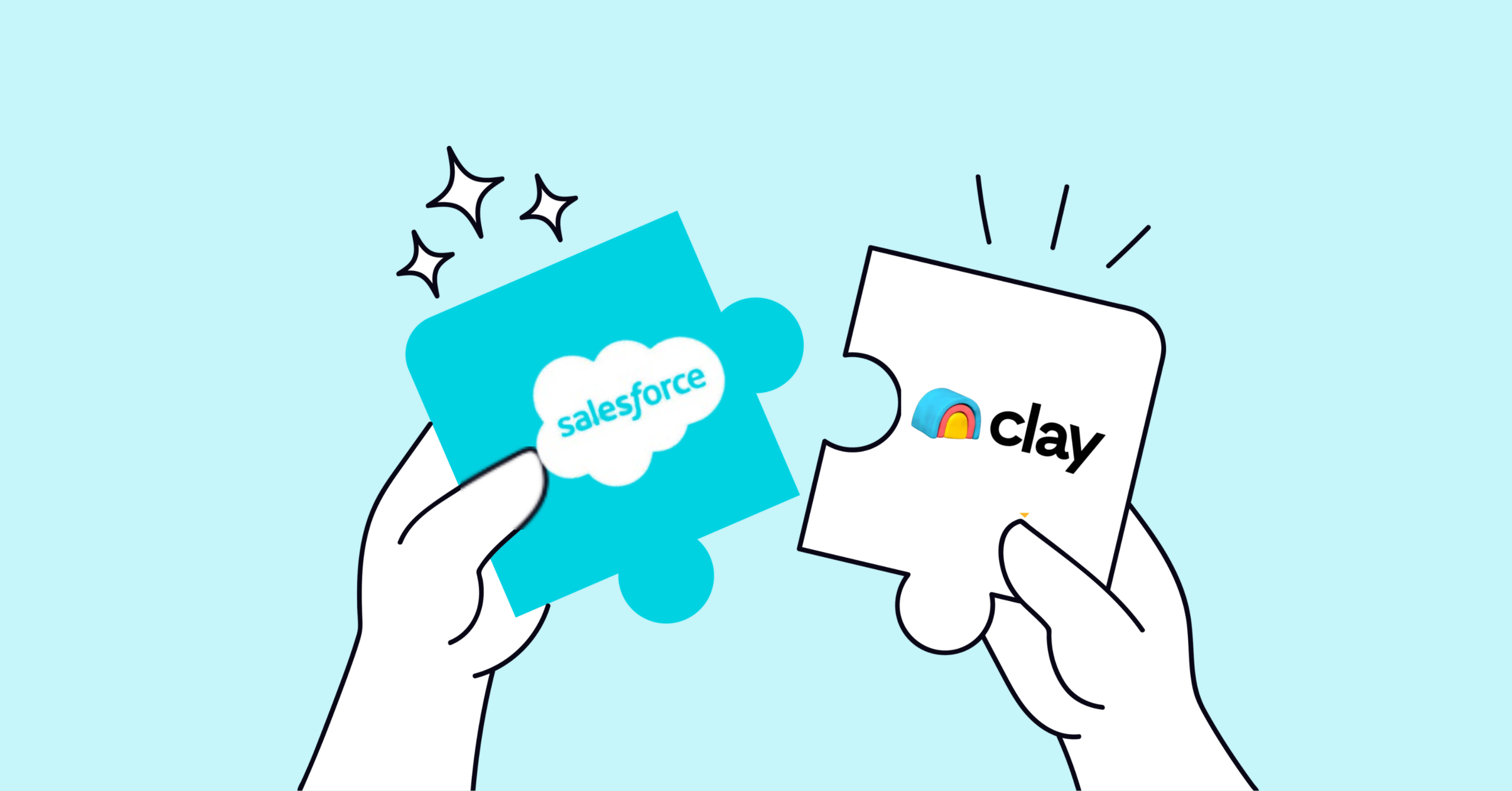
Clay connects to Salesforce through a native integration that lets you pull CRM records into Clay, enrich them with verified contact data and firmographics, then push everything back automatically. No more CSV exports, manual uploads, or stale data sitting in spreadsheets while your sales team waits.

This guide walks through the full setup process—from OAuth permissions and field mapping to duplicate prevention and sync actions—plus practical use cases for sales, marketing, RevOps, and recruiting teams.

What Is Clay Salesforce Integration

Clay integrates with Salesforce through a native connection that allows you to pull CRM records into Clay, enrich them with additional data points, and push updated information back to your CRM. The connection uses OAuth, a secure authorization method where Clay accesses your Salesforce instance without ever storing your password. Once you’ve authenticated, you can import records from Salesforce lists or reports, run enrichment workflows in Clay, and sync everything back automatically.

The workflow breaks down into three parts. First, you import existing Salesforce records into a Clay table. Next, you enrich those records with verified emails, phone numbers, firmographic details, or whatever data your team requires. Finally, you sync the enriched data back to Salesforce—either by creating new records or updating existing ones.

Think of Clay as a data processing layer that sits between your raw prospect information and your CRM. It handles the enrichment and transformation work, then delivers clean, complete records to Salesforce.

Why Sync Clay Data to Salesforce

Connecting enrichment workflows directly to your CRM removes the manual steps that slow teams down and introduce errors into your database.

The Cost of Manual Exports

Without a direct sync, teams typically export CSVs from Clay, clean them in spreadsheets, and manually import them into Salesforce. This process creates friction at every step.

  • Data entry errors: Copy-paste mistakes and formatting inconsistencies corrupt CRM data over time.
  • Stale information: By the time records reach Salesforce, contact details may have already changed.
  • Wasted hours: SDRs and RevOps teams spend time on administrative work—tasks that API-driven enrichment can eliminate—instead of selling or optimizing.
  • Inconsistent formatting: Different team members format data differently, creating a messy, unreliable database.

The longer this cycle continues, the harder it becomes to trust your CRM. Validity’s 2025 report found 37% of CRM users lost revenue due to poor data quality.

What Automated Sync Enables

A direct integration solves most of these problems. Your CRM stays current because enriched data flows in automatically. SDRs can act on fresh leads immediately rather than waiting for batch uploads. RevOps teams spend less time on data hygiene and more time on work that actually moves the needle.

The real value here is speed. When a prospect’s information changes or new data becomes available, that update reaches Salesforce without anyone touching a spreadsheet.

How to Connect Clay to Salesforce

Setting up the connection takes just a few minutes, though you’ll want to verify permissions before you start.

Permissions and OAuth Requirements

The Salesforce user connecting to Clay typically requires API Enabled and Modify All Data permissions on their profile. During setup, you’ll also configure a callback URL in your Salesforce Connected App settings—Clay provides this URL as part of the connection process.

If your org has IP restrictions or strict session policies, you may need to whitelist Clay’s servers. Otherwise, the OAuth handshake might fail even with correct credentials.

Import Records from Salesforce Lists

Once connected, you can pull records directly from existing Salesforce List Views into a Clay table. This approach works well when you’ve already segmented your data in Salesforce. For example, you might have a list called “New Leads – West Coast” or “Enterprise Accounts – Tech Industry” that’s ready for enrichment.

The import pulls whatever records match your List View criteria, bringing them into Clay for processing.

Import Records from Salesforce Reports

For more complex filtering, you can import from Salesforce Reports instead. Reports let you apply multiple criteria and cross-object filters that aren’t possible with simple List Views. A report might combine Lead data with related Campaign information, giving you a more complete picture before enrichment begins.

The records flow into Clay just like a list import, ready for whatever enrichment steps you’ve configured.

Clay Salesforce Sync Actions

After enriching your data, you have several options for how records flow back to Salesforce. Each action serves a different purpose.

Lookup Records via SOQL

SOQL stands for Salesforce Object Query Language—it’s how you search your Salesforce org for existing records. Before creating a new Contact, for instance, you might query for any Contact where the email matches your enriched data. If a match exists, you can update that record instead of creating a duplicate.

This lookup step is often the first action in a sync workflow because it determines what happens next.

Create New Records

The Create action adds brand-new Leads, Contacts, or Accounts to Salesforce. Use it when you’re confident the record doesn’t already exist in your CRM, typically after a SOQL lookup returns no matches.

Update Existing Records

When you find a matching record via SOQL lookup, the Update action modifies specific fields on that existing record. You might add a verified phone number, update a job title that’s changed, or fill in missing firmographic data.

Upsert Records to Prevent Duplicates

Upsert combines “update” and “insert” into a single action. If a matching record exists, it updates. If not, it creates a new one. This is typically the safest approach for most sync workflows because it handles both scenarios automatically without requiring separate logic branches.

Convert Leads

You can also trigger Lead conversion directly from Clay. This action turns a Lead into a Contact and Account—and optionally an Opportunity—without manual intervention in Salesforce. It’s useful when your enrichment workflow qualifies leads and you want to move them through the pipeline automatically.

How to Map Clay Fields to Salesforce

Field mapping tells Clay exactly where each piece of data belongs in Salesforce. Get this wrong, and your data ends up in the wrong places—or doesn’t sync at all.

Step 1

Audit Your Salesforce Fields

Before mapping, review the fields available on your target objects. Note the API names (like Email, Phone, Title) and their data types. A mismatch—like trying to push text into a picklist field—will cause sync errors.

Spend a few minutes in Salesforce Setup reviewing your Lead and Contact objects. Knowing what fields exist and what data types they accept saves troubleshooting time later.

Step 2

Map Clay Columns to Salesforce Properties

In the sync action configuration, you’ll match each Clay column to its corresponding Salesforce field:

Map Clay Columns to Salesforce Properties

The mapping interface is straightforward—select a Clay column, then select the Salesforce field where that data belongs.

Step 3

Configure External IDs for Deduplication

An External ID is a custom Salesforce field that stores a unique identifier from an external system. By creating an External ID field and populating it with a unique value from Clay (like a hashed email or a Clay record ID), you give the Upsert action a reliable key for matching records.

External IDs are particularly useful when email addresses aren’t unique in your database—for example, when the same person appears as both a Lead and a Contact.

How to Avoid Duplicate Records in Salesforce

Duplicate prevention is one of the primary reasons teams invest time in proper sync configuration. A CRM full of duplicates—45% of Salesforce records in Plauti’s analysis of 12 billion records—undermines trust in your data and creates confusion for sales reps.

Matching Strategies for CRM Deduplication

You can match records using several approaches, depending on your data and use case:

  • Email address: The most common identifier for contacts and leads, though not always unique.
  • Company domain: Useful for matching Account records and preventing duplicate company entries.
  • External ID: A custom field containing a unique Clay identifier—highly reliable when configured correctly.
  • Composite key: A combination of fields like First Name + Last Name + Company, useful when no single field is unique.

The right strategy depends on your data quality and how your Salesforce org is structured.

Pre-Sync Deduplication

Before pushing data, use Clay’s Lookup action to check whether a matching record already exists. If it does, route to an Update action. If not, route to a Create action. This workflow prevents duplicates from ever entering your CRM in the first place.

Pre-sync deduplication adds a step to your workflow, but it’s far easier than cleaning up duplicates after they’ve been created.

Native Clay Integration vs Middleware Tools

You can connect Clay to Salesforce directly or through automation platforms like Zapier or Make. Each approach has tradeoffs.

When Native Integration Works

The native integration handles most common scenarios well—basic field mapping, standard objects, and moderate record volumes. If your workflow is straightforward, native is typically faster to set up and easier to maintain over time.

For teams syncing Leads, Contacts, and Accounts with standard fields, native integration covers the basics without adding complexity.

When You Need Zapier or Make

Middleware becomes valuable when you require complex conditional logic, multi-app workflows, or connections to custom objects that aren’t fully supported natively. For example, you might use Make to route records to different Salesforce objects based on job title or industry.

Middleware also helps when you want to trigger actions in other tools—like sending a Slack notification when a high-value lead syncs to Salesforce.

Handling Salesforce API Limits

Salesforce enforces API call limits on a rolling 24-hour basis, starting at 100,000 requests per 24-hour period for Enterprise Edition. Large-scale syncs can bump against these limits if you’re not careful.

Batch Processing for Large Volumes

Clay automatically batches records to reduce API calls when syncing large tables. Instead of one API call per record, multiple records are grouped into single calls. This batching happens behind the scenes, so you don’t have to configure it manually.

Building Retry Logic for Failed Syncs

When syncs fail due to timeouts or rate limits, Clay flags the failed records in your run history. You can review the specific error messages, fix any underlying issues, and retry only the failed records without re-processing successful ones.

Monitoring your sync runs regularly helps catch problems before they compound.

Use Cases for Clay Salesforce Integration

Clay and Salesforce work better together. Here are a few ways teams are using the integration to drive revenue.

Outbound Sales Prospecting

Sales teams enrich lead lists in Clay with verified emails and direct-dial phone numbers, then sync qualified contacts directly into Salesforce. SDRs start outreach with complete, accurate data instead of hunting for contact information or dealing with bounced emails.

Account-Based Marketing Campaigns

Marketing teams build target account lists in Clay, enrich them with firmographic data like employee count and tech stack, and sync complete profiles to Salesforce. This enables coordinated, personalized ABM campaigns where sales and marketing work from the same enriched data.

RevOps Data Hygiene and Enrichment

RevOps teams run automated workflows that find and fill missing data points on existing Salesforce records. Job titles get standardized, industries get populated, and the CRM becomes a more reliable source of truth for reporting and segmentation.

Recruitment Pipeline Building

Recruiters source candidates, enrich profiles with verified contact details and professional history, and sync them into Salesforce-based recruiting systems. This approach builds trackable talent pipelines with accurate, up-to-date information.

Simplify HubSpot Enrichment with Verified B2B Data

Your HubSpot CRM is only as powerful as the data inside it. With verified B2B data, you can enrich every contact and company automatically. Here’s how to get started.

Test Before Automating

Run your sync manually on a small batch of test records first. Verify that field mappings work correctly and data appears as expected in Salesforce before enabling full automation. Catching mapping errors early saves significant cleanup time.

Qualify Records Early

Use Clay’s filtering capabilities to clean data before syncing. Pushing only qualified, relevant records keeps your CRM lean and your sales team focused on prospects worth pursuing.

Monitor Sync Health

Track failed syncs, duplicate creation rates, and field completion rates regularly. Set aside time weekly or monthly to review sync performance and address any recurring issues.

Simplify CRM Enrichment with Verified B2B Data

The success of any CRM integration depends on the quality of your source data. While Clay provides powerful workflow automation, the accuracy of what you push to Salesforce matters just as much.

ReachStream provides verified emails with 90% deliverability, direct-dial phone numbers, and accurate firmographic data from a database of 200M+ B2B contacts. Teams can export enriched data via API or CSV to feed into Clay workflows or push directly to Salesforce.

Try Reachstream
Explore ReachStream's free IceBreaker plan
to Test the Verified B2B Database

Frequently asked questions

1. What permissions do I need in Salesforce to connect Clay?

You typically require a user profile with API Enabled and Modify All Data permissions. System Administrators can complete the connection, or you can create a dedicated integration user with the appropriate permissions.

Yes, Clay supports syncing to custom objects as long as they’re accessible via the Salesforce API and your connected user has the required permissions.

Check that your Salesforce org allows OAuth and connected apps. Verify the callback URL is entered correctly in your Connected App settings, and ensure IP restrictions or session policies aren’t blocking the authorization.

Failed records are flagged in your Clay run history with specific error messages. You can fix the underlying issue and retry only the failed records without re-processing successful ones.

Yes, connecting to a Sandbox first is a smart approach. You can build and validate workflows in a safe environment before deploying to production.

Sharanya N K
Sales & Lead Generation Expert skilled in B2B Marketing, Prospecting, and Demand Generation with a Business Administration degree from Al-Ameen Institute of Management Studies.
Share
Table of Contents

Access 200M+ verified business emails and grow your sales pipeline effortlessly.

Power Your Sales with Targeted Data
Sharanya N K
Sharanya N KAuthor

Don't forget to share this post!

Check out our other blogs!