


How to Evaluate B2B Data Vendors for Accuracy and Compliance

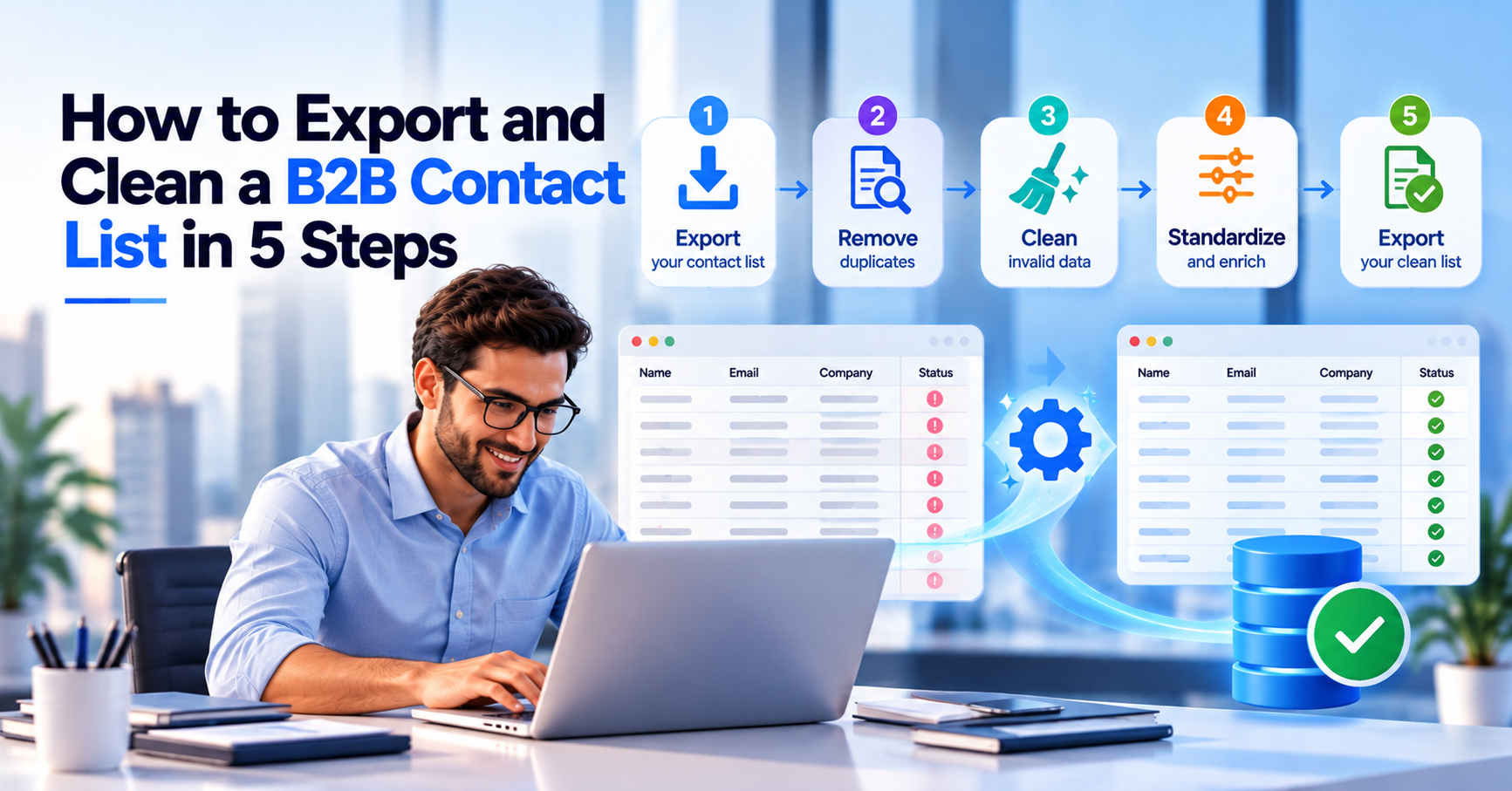
To clean a B2B contact list, export it to a CSV file, remove duplicate records, standardize company names and job titles, validate every email address and then segment or suppress the contacts that have gone quiet. That five-step data hygiene process turns a messy spreadsheet into a list you can send to without worrying about bounces.
B2B list hygiene matters because business data decays quickly. People change jobs, companies rename themselves and mailboxes close. A list that was accurate last spring will have gaps by now, and every hard bounce or wrong-person email chips away at your sender reputation and your team’s confidence in the CRM.
A useful export has enough columns to identify, reach and sort each person, and not much more. Include first name, last name, job title, company name, company website or domain, business email, phone number, industry, company size, location, the lead source and the date the record was created or last updated. If you plan to segment, add seniority and department too.
Field mapping matters when you move data between systems. A column called ‘Company’ in one tool may be ‘Account Name’ in another, and a mismatch can send values into the wrong field. Map each column to its destination before you import, and test with ten rows first.
Leave out anything you do not need. Extra personal fields increase your compliance burden without helping your campaigns, and they make the file harder to clean.
Start by getting everything into one place. Export your contacts from the CRM, marketing platform or prospecting tool as a CSV export, which opens in Excel or Google Sheets and keeps every field in its own column. If your records live in several systems, export each one separately and combine them into one sheet before you touch anything.
Before you change a single cell, save an untouched copy of the original file. Cleaning involves deleting rows, and you will want a way back if a rule removes more than you meant. Check the file encoding too. Saving as UTF-8 stops names with accents or non-English characters turning into unreadable symbols when you re-import.
Add a column for the source of each record and the date it was added. That small step makes later decisions much easier, because you can tell older, unverified data from fresh data at a glance. If your list comes from a data provider, our guide to finding verified decision-makers explains what good source data looks like.
Duplicate records are the most common problem in any CRM and the easiest to fix. They appear when a person is imported twice, filled in by two reps or entered with slightly different spellings, such as ‘Jon Smith’ and ‘Jonathan Smith’ at the same company.
To deduplicate a contact list in Excel, sort by email address, then use Data, then Remove Duplicates on the email column. Email is the best match key because it is usually unique to a person. After that, run a second pass on first name, last name and company to catch the same person with a different address. A conditional formatting rule that highlights duplicate values helps you review matches before deleting anything.
Excel is fine for a few thousand rows, but it will miss near matches. For larger lists, most CRMs have a merge duplicates tool that keeps the most complete record and preserves activity history. When you merge, keep the record with the most recent engagement history and copy over any fields the other record holds.
Once duplicates are gone, make the remaining records consistent. Inconsistent data breaks segmentation, because ‘IBM’, ‘I.B.M.’ and ‘International Business Machines’ look like three companies to a filter. Pick one format and apply it everywhere.
To standardize company names, remove suffixes such as Inc., Ltd. and LLC unless you need them, fix capitalization and use the name the company uses on its own website. In Excel, the TRIM function removes stray spaces and PROPER fixes capitalization, while Find and Replace handles repeating variations.
Job title normalization is trickier. ‘VP Sales’, ‘Vice President of Sales’ and ‘Head of Sales’ may all be the same level, so map them to a standard title and a seniority band such as C-level, VP, director or manager.
Also deal with incomplete records now: decide which fields are mandatory, such as email and company, and flag any contact missing them for enrichment or removal. Our ICP worksheet template helps you decide which job titles and company types are worth keeping.
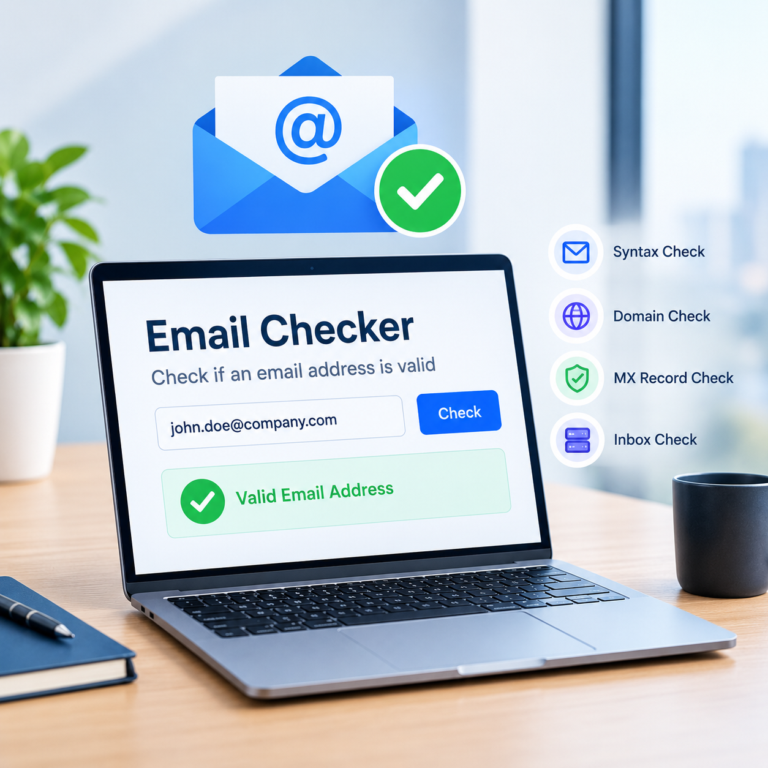
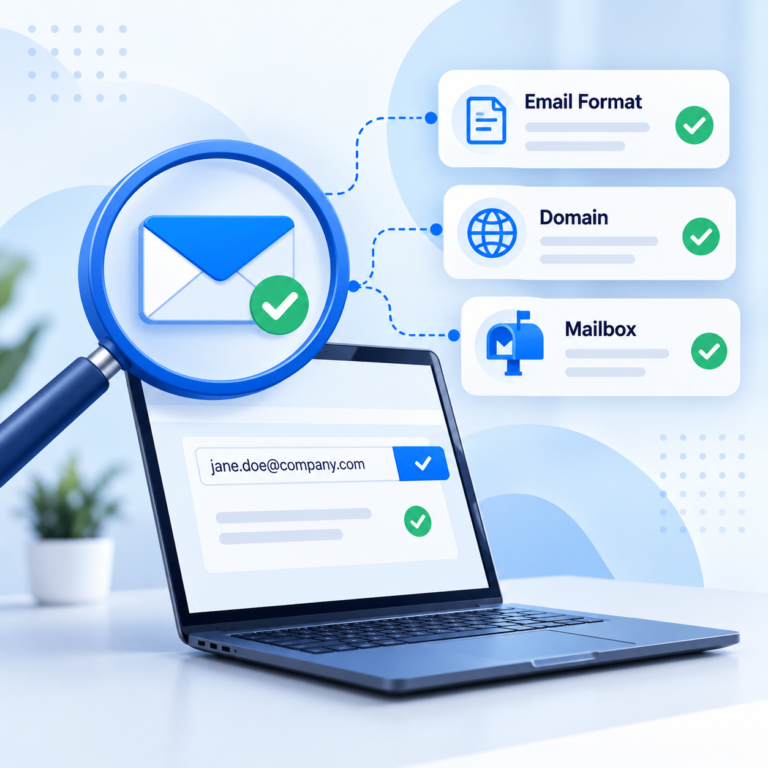
To clean a B2B email list, you mostly remove addresses that cannot receive mail. To validate B2B email addresses, start with a syntax check for typos and missing characters, then confirm the domain exists and has mail servers, and finally use an email verification tool to test whether the mailbox is real. This is how you remove invalid email addresses before they become hard bounces.
Treat the results in groups. Delete invalid contacts, meaning any address marked invalid. Handle ‘risky’ or catch-all results with care, because the server accepts all mail and you cannot confirm the mailbox. Many senders include a small share of these and watch bounces closely. Remove role addresses such as info@ or sales@ if your campaigns target named people.
Keep your bounce rate low, because mailbox providers watch it. Google’s bulk sender guidelines ask senders to keep spam complaints below 0.3%, and verified lists make that easier to achieve. Our guide on how to verify an email address walks through the process in detail.
There is more than one way to do this job. The table below compares three common approaches to B2B contact list cleaning: working by hand in Excel or Google Sheets, using your CRM’s built-in tools, and using a dedicated verification and data tool.
Most teams combine them. Excel is good for a one-off review, the CRM for ongoing deduplication, and a verification tool for checking email addresses at scale.
| Method | Best for | Strength | Effort | Watch out for |
|---|---|---|---|---|
|
Excel or Google Sheets |
One-off clean-ups of small lists |
Free and fully manual control |
High, with row-by-row review |
Misses near-duplicate matches and slows down on large files |
|
CRM built-in tools |
Ongoing deduplication and merging |
Keeps activity history when records merge |
Medium once rules are set |
Settings differ by CRM, and merges are hard to undo |
|
Dedicated verification tool |
Checking email validity at scale |
Fast, automated verification of every address |
Low after setup |
Catch-all results cannot be fully confirmed |
Ongoing CRM contact data cleanup works best at three speeds. Verify new contacts as they enter your CRM, so bad data never settles in. Run a monthly check on bounces, opt-outs and duplicates. Then do a full clean at least every quarter, or before any large campaign, and re-verify any list that has sat unused for more than a few months.
High-volume senders and fast-moving industries need to go more often. If your hard bounce rate starts creeping up, treat that as the signal to clean immediately, before the damage reaches your deliverability.
Keep the work legal as well: honor unsubscribe requests, keep your records accurate and follow the rules for the regions you email into. Our guide to B2B email outreach compliance covers GDPR, CAN-SPAM, CCPA and DPDPA, and this is general information, not legal advice.
List cleaning fixes the data you already have, while ReachStream Prospect helps you build better-quality B2B contact lists from the start. You can filter contacts by job title, industry, company size, revenue, and location to find prospects that match your ideal customer profile. ReachStream provides ESP-verified email data and uses an export-credit system in which credits are deducted when a valid email address is found.
It is important to understand the difference between data cleansing and enrichment. Cleansing identifies and removes duplicate records, corrects errors, and flags outdated or invalid information. Enrichment adds missing details, such as job titles, company information, or phone numbers. A strong data management process combines both: clean existing records first, then enrich the records that remain.
Once your prospect list is ready, ReachStream supports CRM-ready exports and data workflows through ReachAPI. If you plan to mention native Salesforce or HubSpot integrations, confirm their current availability in the relevant integration documentation.
Learning how to clean a B2B contact list comes down to a repeatable loop: export to CSV, remove duplicates, standardize names and titles, validate emails and segment or suppress by engagement. Do it before big campaigns, repeat it on a schedule and keep opt-outs permanently on file.
For your next read, see how to buy B2B data legally and our email verification guide.
Compare ReachStream’s Free, Starter, Pro, Business and Enterprise plans.
Author

Access 500M+ verified business emails and grow your sales pipeline effortlessly.
Don't forget to share this post!















Check out our other blogs!
Email ID Checker: Verify Any Email ID Online

ICP Refinement for SDRs: Using Data Filters to Stop Wasting Touches

Email Validator: Validate Email Format, Domain and Mailbox