
Unlimited Data.
Infinite Possibilities.

Looking for B2B data? Download Unlimited data using our Chrome extension at just $79/month.

Wiza Salesforce Integration: Compatibility Requirements Explained

Wiza Salesforce Integration Compatibility Requirements

Best Tips on Lead Generation for Technology Companies

Connecting Wiza to Salesforce takes about five minutes when everything works. When it doesn’t, you’re stuck troubleshooting OAuth errors, permission gaps, and field mapping conflicts that block your entire prospecting workflow.

This guide covers the exact compatibility requirements, step-by-step connection process, sync settings, and common fixes for integration failures—plus alternatives when Wiza’s limitations affect your team.

What is Wiza Salesforce integration

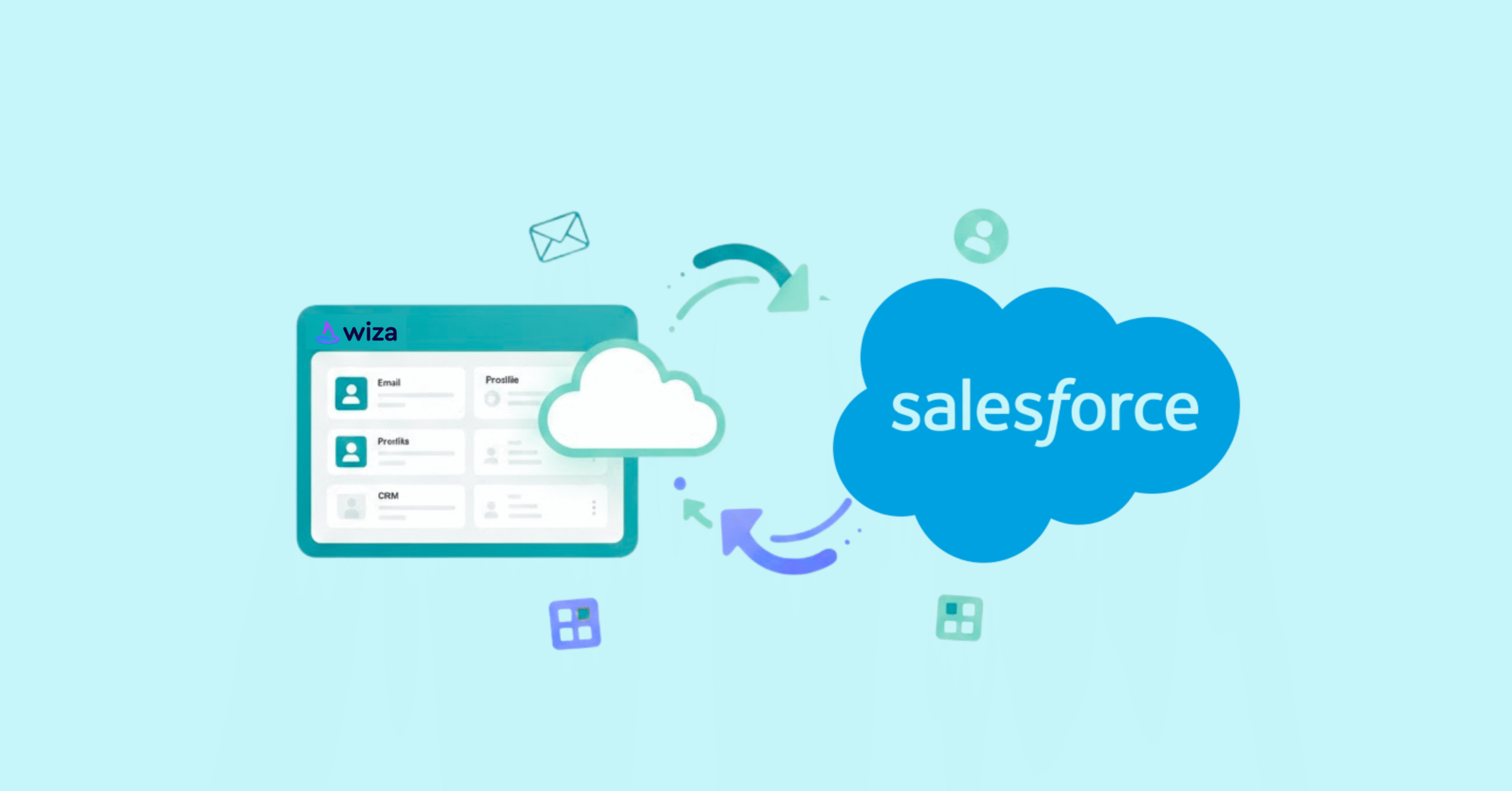
Wiza’s Salesforce integration connects your LinkedIn prospecting workflow directly to your CRM through a native OAuth connection. OAuth is a secure authorization protocol that lets Wiza access your Salesforce data without requiring you to share your password. When you export contacts from LinkedIn using Wiza’s Chrome extension, the integration automatically creates lead or contact records in Salesforce.

The data flows in one direction: LinkedIn to Wiza to Salesforce. You find prospects on LinkedIn, Wiza extracts their contact information and verifies emails, and then the integration pushes that data into your CRM. This eliminates the copy-paste workflow that eats up prospecting time.

  • Primary function: Automated transfer of LinkedIn prospect data into Salesforce records
  • Connection type: Native OAuth authentication (no password sharing required)
  • Data direction: One-way sync from Wiza into Salesforce

Why CRM integration matters for B2B prospecting teams

Manual data entry introduces errors at roughly 1% per field. That percentage compounds quickly when you’re processing hundreds of prospects each week. A single typo in an email address means a lost opportunity, while duplicate records lead to embarrassing double-outreach situations.

Beyond accuracy, there’s the time factor. Reps who manually enter prospect data spend hours each week on administrative work instead of actual selling. CRM integration keeps your team in their prospecting flow rather than toggling between browser tabs to copy and paste information.

The visibility benefit matters too. Sales managers can see real-time pipeline activity without chasing reps for updates. When prospect data flows automatically into Salesforce, everyone works from the same source of truth.

Wiza Salesforce compatibility requirements

Before attempting the connection, you’ll want to verify that your setup meets the technical prerequisites. Missing even one requirement can block the integration entirely or cause sync failures down the line.

1

Supported Salesforce editions

Wiza works with Salesforce Professional, Enterprise, Unlimited, and Developer editions. These editions include the API access that third-party tools require for data sync.

Salesforce Essentials and Group editions have API limitations that typically block connections from tools like Wiza. If you’re on one of these editions, you may need to upgrade before the integration becomes available.

2

API permissions and user access levels

The user connecting Wiza to Salesforce requires specific permissions enabled in their Salesforce profile. At minimum, you’ll need the “API Enabled” permission, which allows external applications to communicate with your Salesforce org.

For the sync to actually write data, you’ll also need read/write access to Lead and Contact objects. Some organizations require “Modify All Data” permissions, though this depends on your Salesforce security configuration. Your Salesforce admin can grant these permissions through user profiles or permission sets.

3

Browser and system requirements

Wiza operates through a Chrome browser extension, so Chrome is the required browser for prospecting workflows. The OAuth authentication handshake and subsequent data syncs require a stable internet connection. Spotty connectivity can cause partial syncs or authentication failures.

4

Wiza plan requirements for Salesforce sync

The Salesforce integration is not available on Wiza’s free tier. CRM integrations typically require a paid Growth or Professional plan. Verify current plan features directly with Wiza since pricing structures change.

How to connect Wiza to Salesforce

The connection process takes about five minutes when you have the right permissions in place.

1

Access integration settings in Wiza

Log into your Wiza dashboard and navigate to Settings, then Integrations. Make sure you’re logged into the Wiza account that has CRM integration included in its plan. Connecting from a free account won’t show the Salesforce option.

2

Authenticate with Salesforce OAuth

Click the Salesforce integration option. An OAuth popup window will appear asking you to log into your Salesforce account and approve the permission request. This authorization allows Wiza to create and update Lead and Contact records on your behalf.

3

Confirm your connection status

After approval, the Wiza dashboard displays a “Connected” status next to Salesforce. Before running any bulk operations, test the connection by syncing a single contact and verifying it appears correctly in Salesforce.

Wiza Salesforce field mapping

Field mapping determines how Wiza data translates into Salesforce records. Poor mapping creates messy CRM data, while thoughtful mapping keeps your database clean and usable.

Standard field mappings

Wiza automatically maps common fields when you first connect:

Standard field mappings

Custom field mapping configuration

If your Salesforce org uses custom fields, you can map Wiza data to those fields manually. This flexibility is particularly useful for teams with mature CRM configurations that track industry-specific data points or proprietary lead scoring fields.

Handling unmapped and conflicting fields

When Wiza has data that doesn’t match any Salesforce field, that data typically gets dropped during sync. For existing records, you’ll configure whether incoming data overwrites current values or skips fields that already contain information.

Wiza Salesforce sync settings

These operational settings control the timing and behavior of your data transfers.

Auto-sync versus manual sync

Auto-sync pushes prospects to Salesforce immediately upon export from Wiza. Manual sync requires you to trigger each transfer from the dashboard. Teams that want quality control before data enters the CRM often prefer manual sync, while high-volume prospectors favor automation.

Duplicate record handling

Wiza offers duplicate detection that matches records by email address. You can configure the system to either skip existing records (preventing duplicates) or update existing records (refreshing stale data). Poor duplicate settings create significant CRM clutter over time.

Sync frequency and data volume limits

Large exports may process in queues rather than appearing instantly in Salesforce. Rate limits vary by plan, so bulk operations involving thousands of records may take longer than expected.

Troubleshooting Wiza Salesforce integration errors

Even properly configured integrations encounter issues. Here are the most common problems and their fixes.

1

OAuth connection errors

  • Problem: Expired Salesforce sessions, revoked app permissions, or org-level restrictions on third-party apps can all break the OAuth connection.

  • Solution: Re-authenticate the connection from Wiza’s integration settings. If that fails, ask your Salesforce admin to whitelist the Wiza application.

2

Field mapping conflicts

  • Problem: Required Salesforce fields have no equivalent Wiza data, or data formats mismatch. For example, Wiza might send text values for a Salesforce picklist field.

  • Solution: Adjust field mappings in Wiza or make the problematic Salesforce fields non-required.

3

Sync failures and missing data

  • Problem: Records don’t appear in Salesforce after sync.

  • Solution: Check Wiza’s sync logs for error messages, verify Salesforce API limits haven’t been exceeded, and confirm the connecting user has write permissions for Leads and Contacts.

Wiza Salesforce integration limitations

Understanding these constraints helps you decide whether Wiza fits your workflow or whether alternatives make more sense.

Credit consumption during sync

Wiza charges credits for each contact exported, regardless of whether the Salesforce sync succeeds. Failed syncs still consume credits, which creates waste when technical issues occur.

Geographic and data coverage gaps

Wiza’s data depends on LinkedIn profiles. Prospects without LinkedIn presence are invisible to the tool, and coverage varies significantly by region and industry. B2B professionals in certain markets may have limited LinkedIn adoption.

Custom object support restrictions

Wiza primarily syncs to standard Lead and Contact objects. If your team uses custom Salesforce objects (like a custom “Prospect” object), native support may not exist. You’d need workarounds using Salesforce flows or third-party automation tools.

Alternatives to Wiza for Salesforce CRM integration

When Wiza’s limitations affect your workflow, several alternatives offer different approaches to CRM-integrated prospecting.

1

ReachStream

Best for: Teams wanting verified B2B data without LinkedIn dependency.

ReachStream maintains an independent B2B database with ESP-verified emails. Credits are charged only for valid addresses, not for bounces. The platform offers native Salesforce sync, unlimited contact and company views, and compliance certifications across GDPR, CCPA, CAN-SPAM, and ACMA.

  • Key capabilities: Salesforce integration, advanced filtering by job title and firmographics, Chrome extension, lifetime free contact renewals for ABM lists
  • Limitations: Paid plan required for CRM features
Get 100 Free contacts to test ReachStream's Salesforce Compatibility
2

Apollo.io

Apollo combines a large contact database with built-in sales engagement tools. The Salesforce integration works well, though users report inconsistent email accuracy since much of the data derives from LinkedIn scraping.

3

Lusha

Lusha focuses on direct dial phone numbers alongside email data. The Salesforce integration is straightforward, and the platform emphasizes GDPR compliance. Database coverage is smaller than some competitors.

How to choose a prospecting tool with Salesforce integration

Use this framework to evaluate options beyond surface-level feature lists:

  • Data source: Does the tool scrape LinkedIn (risking account restrictions) or maintain an independent database?
  • Email verification: Are emails verified before export, and do you pay for invalid addresses?
  • Field mapping flexibility: Can you map to custom Salesforce objects and fields?
  • Compliance: Does the provider hold GDPR, CCPA, and other certifications your organization requires?
  • Credit structure: Are credits charged on export, verification, or sync? What happens when syncs fail?

Test at least two platforms with real Salesforce connections before signing annual contracts.

Conclusion

Wiza’s Salesforce integration can streamline LinkedIn prospecting and eliminate manual CRM entry, if your permissions, edition, and field mappings are configured correctly. Before connecting, confirm compatibility, review sync settings, and test with a small batch to prevent data issues and wasted credits.

And if LinkedIn dependency or sync limitations create friction for your team, evaluate alternative tools that better align with your CRM structure and prospecting strategy

FAQs

Does Wiza work with Salesforce Lightning and Classic?

Yes, Wiza supports both interfaces since the integration connects via the Salesforce API rather than the user interface layer.

What Salesforce API permissions does Wiza require?

Wiza requires “API Enabled” permission plus read/write access to Lead and Contact objects. Your Salesforce admin can configure these through user profiles or permission sets.

Can Wiza sync data to custom Salesforce objects?

Wiza primarily supports standard Lead and Contact objects. Custom objects may require workarounds using Salesforce flows or third-party automation tools.

How often does Wiza sync data to Salesforce?

Sync timing depends on your settings. Auto-sync pushes data immediately upon export, while manual sync requires you to trigger each transfer.

Does Wiza deduplicate records before pushing to Salesforce?

Yes, Wiza offers duplicate detection that matches by email address, allowing you to skip or update existing records.

What happens to Wiza credits if a Salesforce sync fails?

Credits are typically consumed at export before the sync occurs, so failed syncs may still deduct credits. Check Wiza’s current billing policies for your specific plan.

Is the Wiza Salesforce integration GDPR compliant?

Wiza claims compliance with major data regulations, though your organization remains responsible for how you use and store prospect data within Salesforce.

Table of Contents

Access 200M+ verified business emails and grow your sales pipeline effortlessly.

Claim Your 100 Free Export Credits Today!

Power Your Sales with Targeted Data

Don't forget to share this post!

Check out our other blogs!