
Unlimited Data.
Infinite Possibilities.

Looking for B2B data? Download Unlimited data using our Chrome extension at just $79/month.

Wiza HubSpot Integration: How It Works

Wiza HubSpot Integration How It Works

Best Tips on Lead Generation for Technology Companies

Wiza pulls prospect data from LinkedIn and syncs it directly into HubSpot, eliminating the manual export-import cycle that slows down outbound teams. When configured correctly, contacts you save in Wiza appear in your CRM within minutes, complete with company associations and mapped fields.

This guide walks through the setup process, field mapping options, sync configurations, and troubleshooting steps so you can connect the two platforms and start prospecting without the data entry bottleneck.

What the Wiza HubSpot integration does

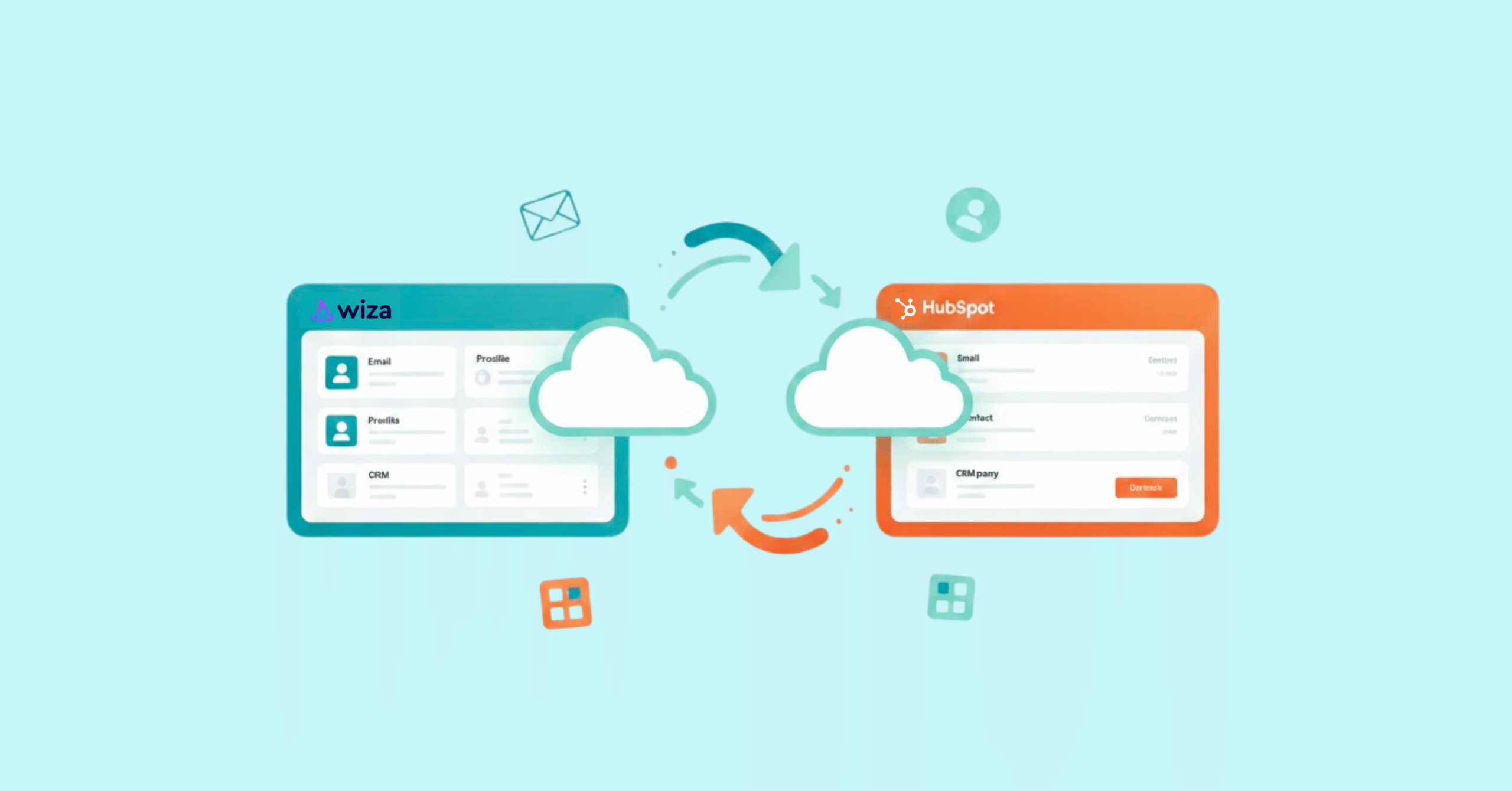
The Wiza HubSpot integration connects your LinkedIn prospecting workflow directly to your CRM by automatically syncing contacts you find in Wiza into HubSpot as Contact records with associated Company data. Wiza pulls prospect information from LinkedIn and Sales Navigator, while HubSpot manages your sales pipeline and outreach sequences. Once connected, every contact you save in Wiza flows into HubSpot without manual copy-pasting.

This integration eliminates the tedious back-and-forth of exporting CSVs and importing them into your CRM. Your sales team can prospect on LinkedIn and have those leads ready for follow-up in HubSpot within minutes.


Requirements for the Wiza HubSpot integration

To successfully connect Wiza with HubSpot, you’ll need the appropriate HubSpot plan, the correct user permissions, and a Wiza subscription that supports CRM integrations. Make sure your account setup meets these requirements before starting the authorization process.

HubSpot plan and user permissions

The integration works with HubSpot’s free CRM tier for basic syncing. However, features like custom property mapping typically require a paid HubSpot plan. You’ll also need admin or super admin permissions in HubSpot to authorize the OAuth connection, since standard users can’t grant third-party apps access to the portal.

Wiza subscription requirements

HubSpot integration is available on Wiza’s paid plans only. The free Wiza tier doesn’t include native CRM connections, so if you’re evaluating Wiza specifically for HubSpot syncing, confirm your subscription level before signing up.

Browser and API access

The integration uses HubSpot’s official API, which means you’ll want stable internet and a modern browser. Corporate firewalls sometimes block OAuth authorization flows, so check with your IT team if the connection screen fails to load.

How to connect Wiza to HubSpot

Connecting Wiza to HubSpot only takes a few minutes. Use the step-by-step guide below to authorize access and activate your integration.

1

Open integration settings in Wiza

Start by navigating to Settings, then Integrations within your Wiza dashboard. You’ll see a list of available CRM connections. Find HubSpot and click the connect button to begin the authorization process.

2

Authenticate your HubSpot account

Clicking “Connect” opens HubSpot’s OAuth screen, where you’ll grant Wiza permission to read and write contacts, companies, and related properties. Take a moment to review the requested permissions before approving, since this determines what data Wiza can access and modify.

3

Confirm the connection status

After authorization, return to Wiza’s integration settings. A green status indicator confirms the connection is active. From here, click “Setup” to configure exactly how your data flows between the two platforms.

Wiza to HubSpot field mapping

Field mapping determines how Wiza prospect data populates HubSpot properties. Getting this right prevents data inconsistencies and duplicate records down the line.

Default field mapping

Wiza maps standard fields automatically when you first connect:

Default field mapping

Custom field mapping

You can map Wiza fields to custom HubSpot properties through the Setup menu. This is particularly useful when you track industry-specific data points or use custom properties for lead scoring and segmentation.

Company vs contact field mapping

Wiza syncs both Contact and Company records separately. Company data like industry, employee count, and website attaches to the Company record, while personal details go to the Contact. You configure each mapping type independently, which keeps your data organized and easier to report on.

Sync settings and configuration options

How to use Zapier for Wiza HubSpot automation

Zapier offers an alternative connection method for teams wanting more advanced automation beyond native sync capabilities.

Supported triggers and actions

  • Triggers available: New contact created in Wiza, contact updated in Wiza
  • Actions available: Create or update HubSpot contact, create deal, add contact to list, send internal notification

Common Zap workflows for lead management

Popular automations include adding Wiza leads to HubSpot sequences automatically, creating deals when high-value prospects sync, and sending Slack alerts when specific job titles enter your CRM. Zapier’s flexibility compensates for limitations in the native integration.

How to filter Wiza synced leads in HubSpot

Identifying which HubSpot contacts originated from Wiza helps you measure prospecting ROI and segment leads for targeted nurturing.

  • Active list approach: Create a HubSpot list filtered by “Original Source” containing “Wiza” or by a custom property you’ve mapped.
  • Property filter approach: Use the “Create Date” property combined with source tracking to isolate recently synced contacts.
  • Source tracking approach: Configure Wiza to populate a custom “Lead Source” property with “Wiza” for easy filtering and reporting.

Troubleshooting Wiza HubSpot sync issues

Contacts not syncing to HubSpot

Problem: You’ve exported contacts in Wiza but they don’t appear in HubSpot.

Solution: Verify the integration shows “Connected” status in Wiza settings. Check that you’ve actually triggered a sync, since saving contacts doesn’t always auto-sync. Re-authenticate if HubSpot permissions have changed.

Duplicate records in HubSpot

Problem: The same contact appears multiple times in your CRM.

Solution: Duplicates often occur when email addresses don’t match exactly or company names have formatting variations. Enable HubSpot’s duplicate management tools and configure Wiza to match on email domain rather than company name.

Field mapping errors

Problem: Data appears in wrong fields or is missing entirely.

Solution: Check that custom HubSpot properties match the expected data type. Required fields in HubSpot that aren’t mapped will cause sync failures.

HubSpot API rate limit errors

Problem: Large exports cause sync delays or failures.

Solution: HubSpot limits API calls based on your subscription tier. Stagger large syncs across multiple sessions or upgrade your HubSpot plan if you consistently hit limits.

Wiza HubSpot integration limitations

The native integration has boundaries worth understanding before you commit:

  • No custom object support: Wiza syncs to standard Contacts and Companies only. Custom objects require Zapier or API workarounds.
  • Limited automation triggers: You can’t trigger HubSpot workflows directly from Wiza events without Zapier.
  • One HubSpot portal per Wiza account: Agencies managing multiple client portals face configuration challenges.
  • Sync frequency constraints: Real-time sync isn’t guaranteed. Batch processing can introduce delays during high-volume exports.

Alternatives to Wiza for HubSpot prospecting data

If you’re evaluating alternative tools for sourcing prospecting data in HubSpot, the platforms below offer different strengths in data coverage, verification accuracy, and workflow integration.

1

ReachStream

Best for: Teams prioritizing verified email accuracy and compliance-first data practices.

ReachStream delivers ESP-verified emails where credits are only deducted for valid addresses. The Chrome Extension works directly on LinkedIn for seamless prospecting, and data exports integrate smoothly with HubSpot workflows.

Key capabilities: Unlimited contact and company views, advanced filtering across job title, industry, and technographics, lifetime free contact renewals for ABM lists, and full GDPR/CCPA/CAN-SPAM compliance.

Get 100 Free contacts to test data quality against your target market
2

Apollo.io

Best for: Teams wanting prospecting and email sequencing in one platform.

Apollo combines a large contact database with built-in outreach tools and offers native HubSpot integration. The free tier provides limited monthly credits for evaluation.

3

Cognism

Best for: European-focused teams requiring GDPR-compliant phone-verified data.

Cognism emphasizes mobile number accuracy and compliance certifications, though pricing sits at the premium end of the market.

3

Lusha

Best for: Individual reps wanting quick browser-based contact lookups.

Lusha’s Chrome extension provides fast access to direct dials and emails with straightforward HubSpot sync. Credit-based pricing can become expensive at scale.

Get verified B2B contacts for HubSpot with ReachStream

Accurate prospect data determines whether your HubSpot outreach succeeds or bounces. ReachStream’s verification process ensures you’re working with valid emails before they ever reach your CRM, protecting your sender reputation and maximizing campaign ROI.

With scalable plans from individual reps to enterprise teams, you can match your data volume to your actual prospecting volume without overpaying for unused credits.

Get 100 Free Contacts to Compare Data Quality

Conclusion

The Wiza–HubSpot integration removes the manual work from outbound prospecting by syncing LinkedIn leads directly into your CRM. With proper field mapping and sync settings, contacts and companies flow into HubSpot automatically and stay organized. This reduces data entry errors, prevents duplicates, and speeds up follow-up. When configured correctly, your team can focus on closing deals instead of managing spreadsheets.

FAQs

Does the Wiza HubSpot integration work with HubSpot Free?

Yes, the basic integration functions with HubSpot’s free CRM tier. Advanced features like custom property mapping may require paid HubSpot plans.

How long does it take for Wiza contacts to sync to HubSpot?

Syncs typically complete within minutes. Large batch exports may take longer depending on HubSpot API limits and current system load.

Can I sync Wiza data to custom HubSpot objects?

The native integration only supports standard Contacts and Companies. Custom objects require Zapier workflows or direct API development.

Does the Wiza integration affect my HubSpot API limits?

Yes, each synced record consumes API calls. High-volume users on lower HubSpot tiers may encounter rate limiting during large exports.

How do I disconnect Wiza from HubSpot?

Remove the connection from Wiza’s Settings, then Integrations page. Then revoke access in HubSpot under Settings, then Integrations, then Connected Apps.

Can I sync historical Wiza leads to HubSpot after connecting?

Previously exported contacts don’t sync automatically. You’ll want to re-export existing lists after establishing the integration to push historical data into HubSpot.

Table of Contents

Access 200M+ verified business emails and grow your sales pipeline effortlessly.

Claim Your 100 Free Export Credits Today!

Power Your Sales with Targeted Data

Don't forget to share this post!

Check out our other blogs!